 Inference
 Marketplace


Introduction
This use case demonstrates how to configure a Local virtual network on a node with multiple network interfaces to implement multi-path routing, automatic failover, and inbound port-forwarding restrictions. The same techniques apply to any node that requires redundant connectivity or selective application access policies. For a description of static routes, connected routes, and probing, see Virtual Networks Overview.Prerequisites
- EVE-OS (Edge Virtualization Engine) 13.3.0 or later on the target node.
- You have the SysManager or SysAdmin role in your enterprise. See Manage Roles.
- A node with at least four physical Ethernet ports onboarded to Edge Infrastructure Services.
- An edge application created in your enterprise.
Example Scenario
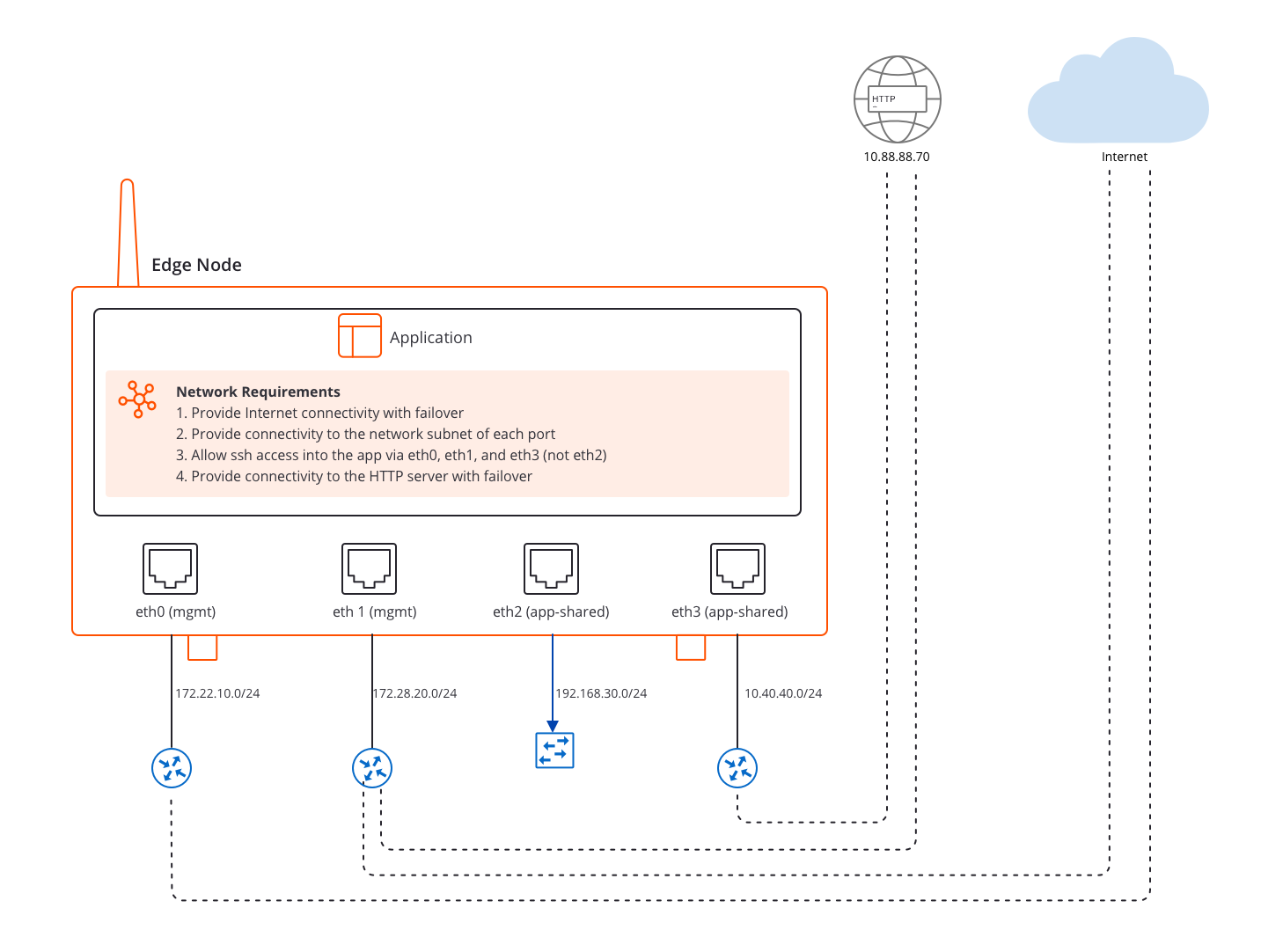
In this scenario, the node has four Ethernet ports: eth0, eth1, eth2, and eth3. Each port is connected to a different subnet. The requirements are:- Internet connectivity with automatic failover across multiple ports.
- Connectivity to the local network of each port.
- SSH access into the application instance through eth0, eth1, and eth3, but not eth2.
- Connectivity to a remote HTTP server, with failover.
Add Adapter Labels to the Node
Adapter labels group ports so that a single virtual network route can use multiple ports with automatic failover.- Navigate to the node’s configuration in Edge Infrastructure Services.
-
In the Adapters tab, assign the following labels to the node ports:
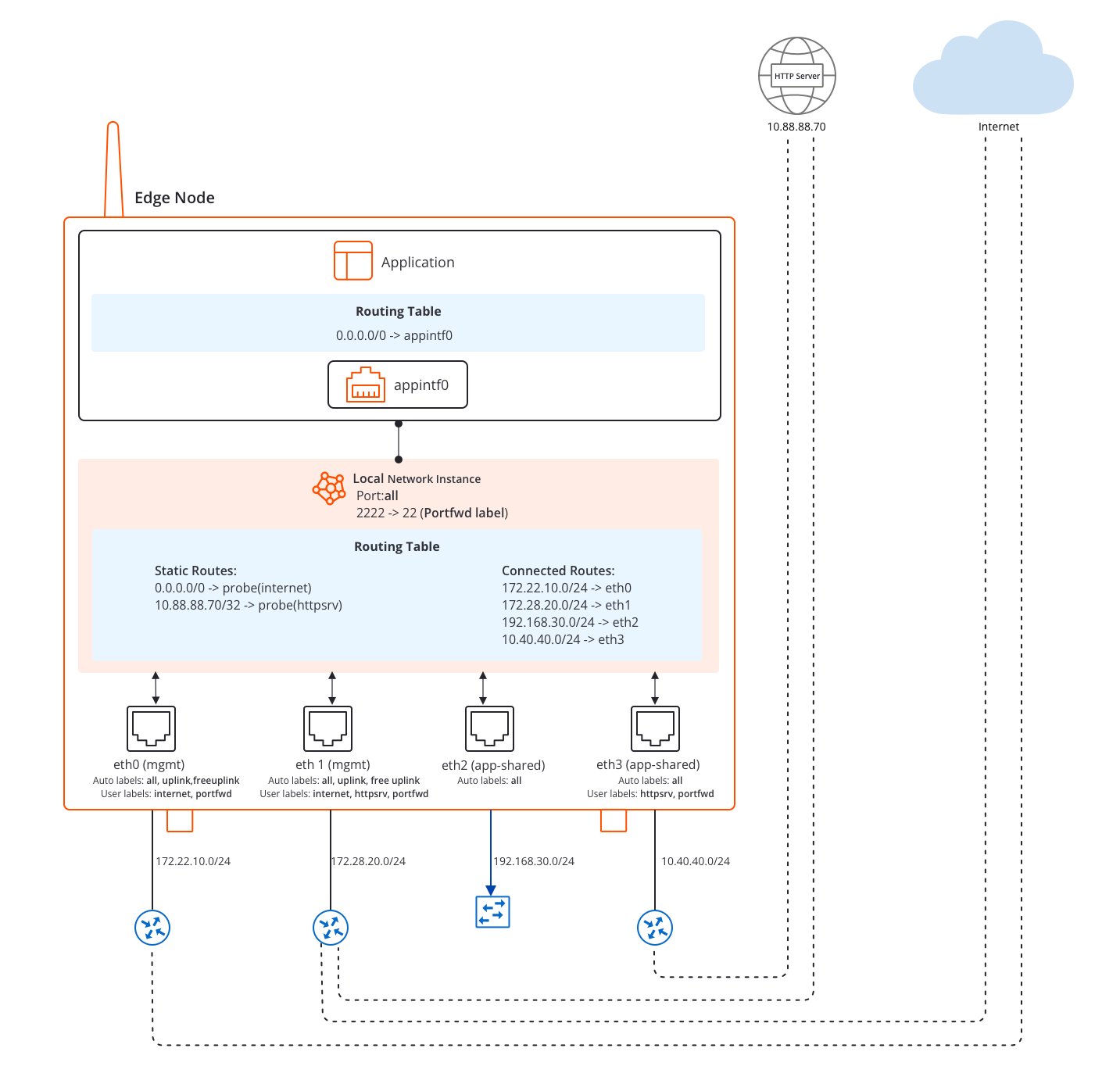
eth0:internet,portfwdeth1:internet,httpsrv,portfwdeth2:alleth3:httpsrv,portfwd
Create a Local Virtual Network
Create a Local virtual network on the node and assign all ports to it using the Adapter Labels > All predefined port group. The virtual network routes you configure in the next step will control which ports carry which traffic.- In the sidebar, click Infrastructure > Workloads > Virtual Networks.
- Select the contextual + create action and create a Local virtual network on the node.
- In the Node Port field, select Adapter Labels > All to make all node ports available to the virtual network.
- Proceed to the Routes section.
Configure static routes
Add the following two static routes in the Routes section: Route 1: Internet connectivity- Prefix:
0.0.0.0/0. - Gateway: leave blank (EVE-OS automatically uses the default gateway of the selected output port).
- Output Port:
internet(the adapter label you assigned to eth0 and eth1).
- Prefix:
10.88.88.0/24(the subnet of the HTTP server). - Gateway: leave blank.
- Output Port:
httpsrv(the adapter label you assigned to eth1 and eth3).
Configure probing
When you select an adapter label as the output port for a route, a probing configuration section appears directly below that route row. Configure probing for each adapter-label route separately. For the Internet route (output port:internet):
- Toggle Prefer Low Adapter Cost on.
- Toggle Gateway Ping on.
httpsrv):
- Toggle Prefer Low Adapter Cost on.
- Toggle Custom User Probe on.
- Set Probing Method to TCP.
- Set Custom Probing Address to
10.88.88.70(the HTTP server IP address). - Set TCP Port to
80.
Configure Port Forwarding on the Application
Restrict SSH access to the application instance so that it is reachable through eth0, eth1, and eth3, but not eth2.- Navigate to your edge application in the marketplace.
- Edit the application definition.
- In the Environment section, add an inbound rule with the following settings: Node Port
2222, Application Port22, Protocol TCP, and Allowed Sources set to the adapter labelportfwd(which covers eth0, eth1, and eth3).
Result
After applying these configurations:- EVE-OS selects the best available port with the
internetlabel for outbound internet traffic, and fails over automatically if that port loses connectivity. - EVE-OS selects the best available port with the
httpsrvlabel for traffic to the HTTP server, with TCP handshake probing confirming server reachability. - The application instance accepts SSH connections through eth0, eth1, and eth3 only.
Next Steps
Virtual Networks Overview
Reference documentation on static routes, adapter labels, and probing.
Create a Virtual Network
The full creation wizard walkthrough.
Manage a Virtual Network
Update routes and configuration after creation.