 Inference
 Marketplace


Introduction
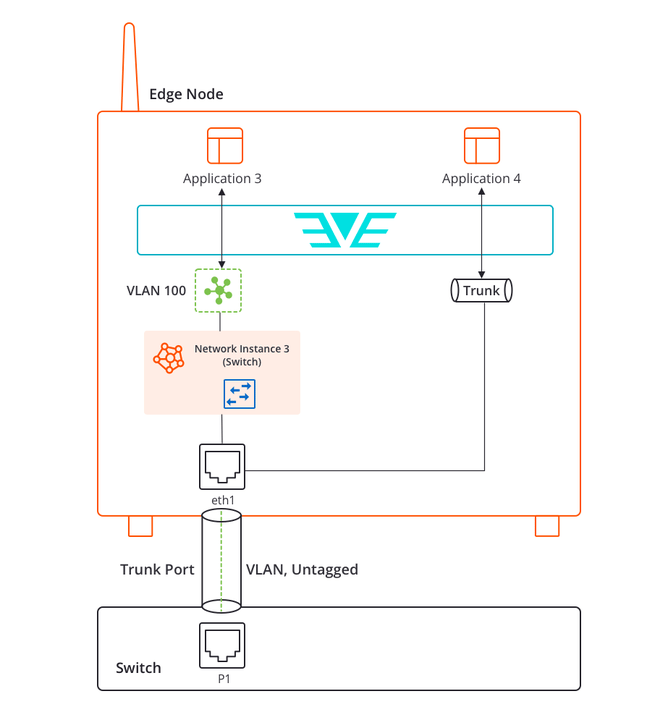
This use case demonstrates how to combine a Switch virtual network with access VLANs and an EVE-OS management VLAN sub-interface on a single physical Ethernet port. This configuration is available in EVE-OS (Edge Virtualization Engine) 14.5.2-LTS and later. Prior to EVE-OS 14.5.2-LTS, VLAN sub-interfaces and access VLANs required separate physical ports. VLAN sub-interfaces were only supported with Local virtual networks (Scenario 1), and access VLANs were only supported with Switch virtual networks (Scenario 2). Scenario 1: VLAN sub-interface with Local virtual networks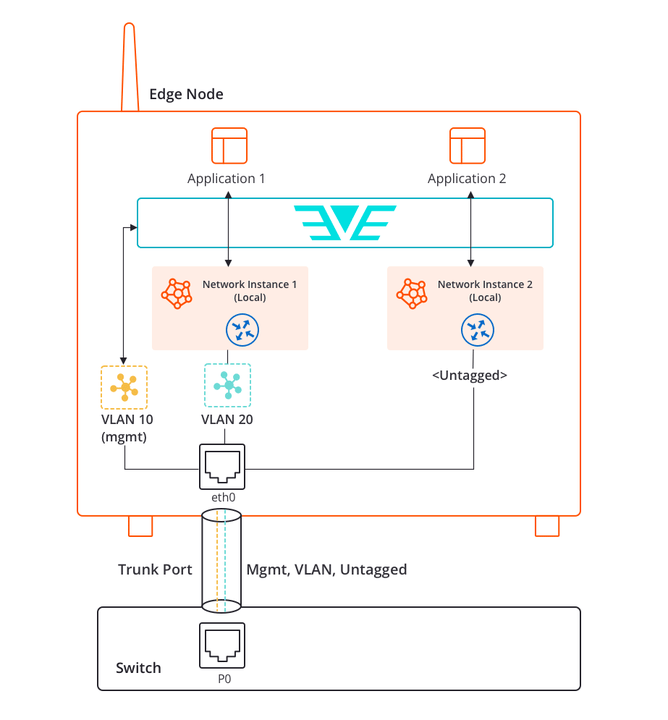
Prerequisites
- EVE-OS 14.5.2-LTS or later on the target node.
- You have the SysManager or SysAdmin role in your enterprise. See Manage Roles.
- A node with at least one physical Ethernet port onboarded to Edge Infrastructure Services.
- A Switch virtual network created on the node. See Create a Virtual Network.
- An upstream switch configured with a trunk port to carry management, application, and untagged traffic.
- Two edge applications ready to deploy.
Example Scenario
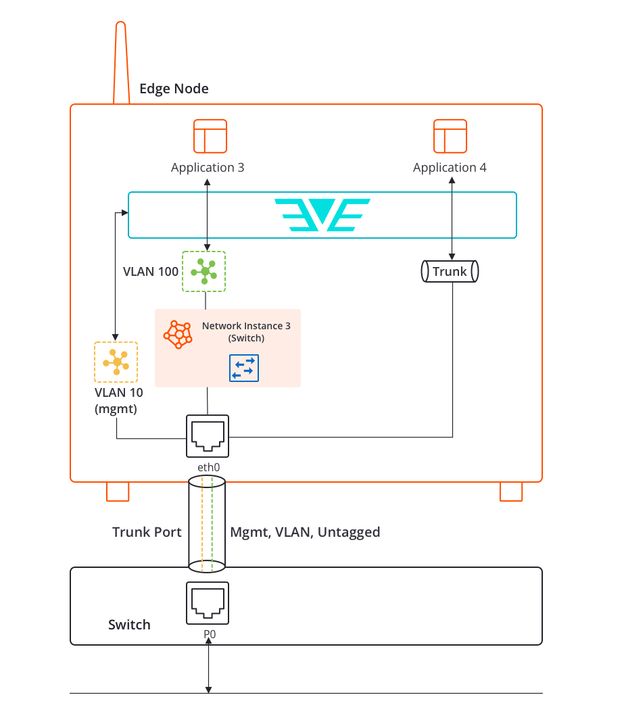
The node has a single physical Ethernet port: eth0. The upstream switch is configured with one trunk port. The traffic is segmented as follows:- VLAN 10 (management): a VLAN sub-interface on eth0 carries EVE-OS management traffic.
- VLAN 100 (Application 4 access): an access VLAN on the Switch virtual network isolates Application 4.
- Trunk traffic: Application 3 connects to the Switch virtual network as a trunk port and receives broadcast, unknown unicast, and multicast traffic from all VLANs.
Step 1: Configure the Node Adapter
Configure eth0 with a management VLAN sub-interface. The access VLAN for Application 4 is configured at deployment time, not at the adapter level.- Open Infrastructure > Fleet > Nodes.
- Select the node and click the Configure node (gear) icon.
- In the configuration sidebar, open Adapters > NICs.
- For eth0, set Interface Usage to App Shared (this allows both VLAN-tagged and untagged traffic on the port), expand the adapter options, and click VLAN Details.
- Add a VLAN sub-interface for management: set Logical Label to
eth0.10, VLAN ID to10, and Interface Usage to Management. - Click Save Changes.
Step 2: Deploy Application Instances
Deploy Application 3 (trunk)
Deploy Application 3 without an access VLAN. It attaches to the Switch virtual network as a trunk port.- Deploy Application 3 using Deploy an Application Instance.
- In the Adapters and Networks section, select the Switch virtual network on eth0.
- Do not configure an access VLAN.
- Complete the deployment.
Deploy Application 4 (VLAN 100 access)
Deploy Application 4 with access VLAN 100. The access VLAN isolates this application from traffic on other VLANs.- Deploy Application 4 using Deploy an Application Instance.
- In the Adapters and Networks section, select the Switch virtual network on eth0.
- Expand the adapter options.
- In the Access VLAN ID field, enter
100. - Complete the deployment.
Result
After completing this configuration, a single physical port (eth0) simultaneously handles:- EVE-OS management traffic on VLAN 10, isolated from application traffic.
- Application 4 traffic on VLAN 100, isolated from other applications.
- Application 3 traffic as a trunk port, receiving all VLANs flowing through the Switch virtual network.
Next Steps
Virtual Networks Overview
Reference documentation on VLANs, VLAN sub-interfaces, and Switch virtual networks.
L2 Switching with Access VLANs
A use case using Switch virtual networks with multiple VLANs across separate ports.
VLAN Port Segmentation
A use case using VLAN sub-interfaces with Local virtual networks.
Manage a Virtual Network
Update configuration after creation.