 Inference
 Marketplace


Introduction
EVE-OS (Edge Virtualization Engine) implements a Switch virtual network as a fully transparent Layer 2 bridge. By default, all application instance ports attached to a Switch virtual network are trunk ports that carry 802.1Q-tagged and untagged traffic. The Access VLAN ID field in the application instance deployment wizard lets you configure an access port: the application sees only traffic for the assigned VLAN, and EVE-OS handles tagging and stripping transparently. Access VLAN ID values must be between 2 and 4093. This use case demonstrates how to use access VLANs on a Switch virtual network to isolate groups of application instances by VLAN, while a VyOS router instance on a trunk port provides DHCP, NAT, and inter-VLAN routing. For background on Switch virtual networks, see Virtual Networks Overview.Prerequisites
- You have the SysManager or SysAdmin role in your enterprise. See Manage Roles.
- A node onboarded to Edge Infrastructure Services.
- Application images for the VyOS router, Ubuntu containers, and Ubuntu virtual machines available in your enterprise.
Example Scenario
The node runs a single Switch virtual network with the following application instances attached:- VyOS router: connects as a trunk port, receiving all tagged and untagged traffic. It provides DHCP for all VLANs, performs NAT, and routes traffic between VLANs.
- Container 1 and Container 2: connect with access VLAN 100. They receive IP addresses in the 20.1.1.0/24 range from the VyOS DHCP server.
- Ubuntu VM: connects with access VLAN 200. It receives an IP address in the 30.1.1.0/24 range from the VyOS DHCP server.
- Ubuntu VM (no VLAN): connects as a trunk port with no access VLAN configured. It receives an IP address in the 40.1.1.0/24 range from the VyOS trunk interface.
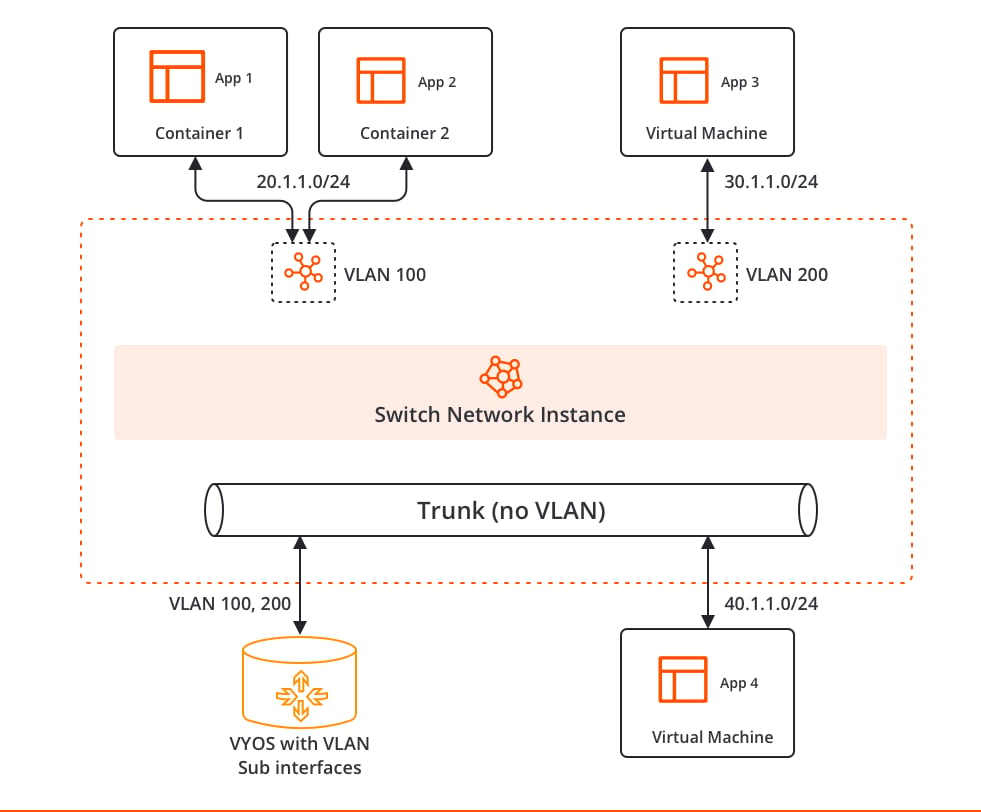
Create the Switch Virtual Network
- In the sidebar, click Infrastructure > Workloads > Virtual Networks.
- Select the contextual + create action to open the creation wizard.
- Select Switch as the virtual network type.
- Configure the Identity section with a name and title.
- In the Details section, set the Target Type to Node and select the node.
- In the Node Port field, select the physical port to use as the external uplink for the Switch virtual network. Leave this blank if no external uplink is required.
- Click Create.
Deploy the Application Instances
When deploying each application instance, configure the network adapter in the Adapters and Networks section of the deployment wizard. For access VLAN instances, expand the adapter options after selecting the Switch virtual network to reveal the Access VLAN ID field.VyOS router (trunk)
- Deploy the VyOS application instance using Deploy an Application Instance.
- In the Adapters and Networks section, select the Switch virtual network for the network adapter.
- Do not configure an access VLAN. The adapter connects as a trunk port and receives all tagged and untagged traffic.
- Complete the deployment.
eth1.100 and eth1.200 subinterfaces for VLAN 100 and VLAN 200, enable a DHCP server on each subinterface, and configure routing between VLANs.
Container 1 and Container 2 (VLAN 100)
For each container:- Deploy the Ubuntu container using Deploy an Application Instance.
- In the Adapters and Networks section, select the Switch virtual network for the network adapter.
- Expand the adapter options and enter
100in the Access VLAN ID field. - Complete the deployment.
Ubuntu VM (VLAN 200)
- Deploy the Ubuntu VM using Deploy an Application Instance.
- In the Adapters and Networks section, select the Switch virtual network for the network adapter.
- Expand the adapter options and enter
200in the Access VLAN ID field. - Complete the deployment.
Ubuntu VM (no VLAN)
- Deploy the Ubuntu VM using Deploy an Application Instance.
- In the Adapters and Networks section, select the Switch virtual network for the network adapter.
- Do not configure an access VLAN. The adapter connects as a trunk port.
- Complete the deployment.
Result
After completing this configuration:- Container 1 and Container 2 are isolated on VLAN 100 and can communicate with each other within that VLAN.
- The Ubuntu VM is isolated on VLAN 200 and cannot communicate directly with the VLAN 100 containers without routing through the VyOS instance.
- The Ubuntu VM without an access VLAN configured connects as a trunk port and receives all tagged and untagged traffic.
- The VyOS router routes traffic between all VLANs and provides internet access through NAT.
Next Steps
Virtual Networks Overview
Reference documentation on Switch virtual network behavior and VLAN support.
L2 Switching and Management VLAN on a Single Interface
A use case that combines a Switch virtual network and a management VLAN sub-interface on a single physical port (EVE-OS 14.5.2-LTS and later).
VLAN Port Segmentation
A use case that segments traffic using VLAN sub-interfaces on Local virtual networks.
Manage a Virtual Network
Update or delete the virtual network after creation.