 Inference
 Marketplace


Start from the Nodes list
Open Infrastructure > Fleet > Nodes. Use this page for fleet-level triage before opening an individual node. The table shows the node name, current Status, associated Applications, EVE-OS Version, location, and project. Search and filters help narrow the list when you are looking for a specific node, project, version, or status.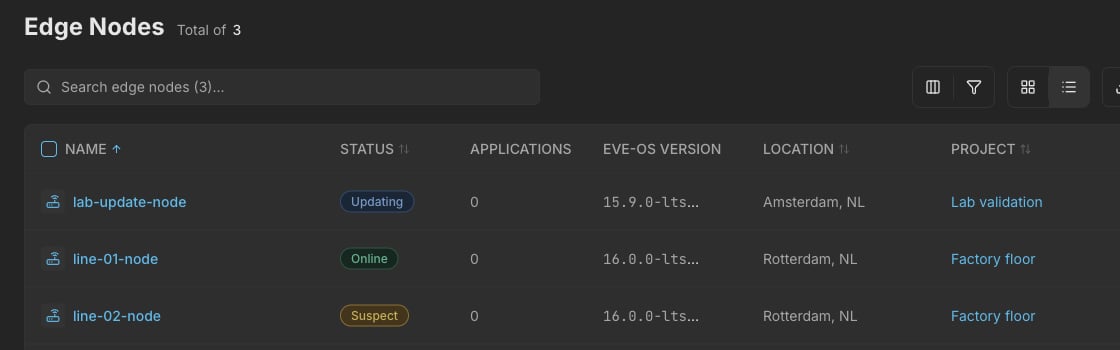
Separate the signals
Status, admin state, configuration state, and health signals answer different questions.
Use status for live readiness. Use the other signals to understand why the node is in that state and whether it is safe to act.
Interpret common statuses
Review the node overview
Open a node from the list to review the detailed health view. Below the header action icons, the status ribbon shows a six-cell snapshot of Status, Uptime, Last seen, Reboot reason, EVE version, and Workload count. The page tabs below the ribbon organize health by area: Overview, Details, Workloads, Adapters, and Storage.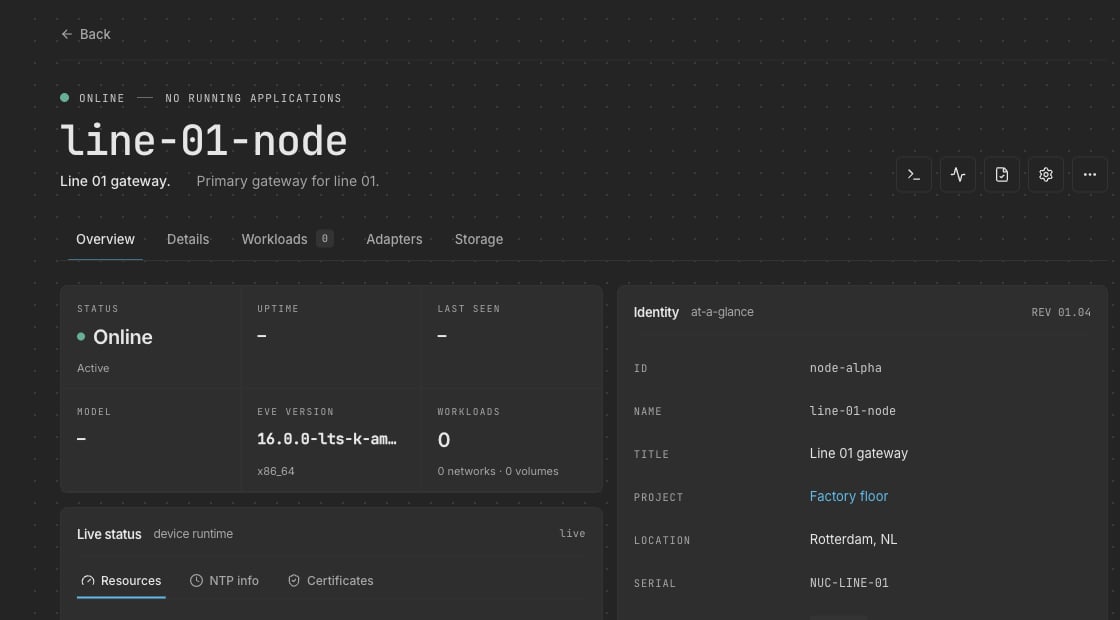
Move to the other tabs when the symptom points to a specific area:
Inspect configuration status
Select Configuration Status from the node detail header when a recent change has not appeared on the node, the node is Suspect or Error, or Configuration Lock may be affecting propagation.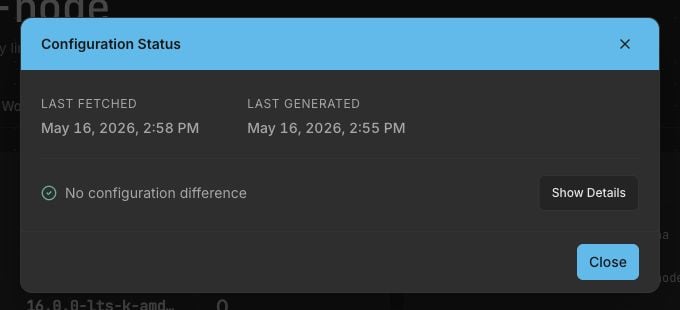
If Last Generated is newer than Last Fetched, the node has not yet consumed the newest configuration. Check connectivity, Configuration Lock, node status, and recent events before making additional changes.
Readiness checklist
A node is generally ready for Applications when:- Status is Online or otherwise shows that the node has completed registration and is reporting.
- The node is assigned to the expected project.
- The EVE-OS version is known and appropriate for the workload.
- Required adapters are configured for management and Application traffic.
- Required Virtual Networks exist for the Applications you plan to deploy.
- Storage is available for the expected workload.
- Configuration status shows no unexpected difference.
- System and security signals match your operational requirements.
Troubleshoot by symptom
Verify the result
After investigating node health:- Confirm the node status matches the expected operation.
- Confirm the admin state matches your intent.
- Check recent activity and events if the status changed unexpectedly.
- Review configuration status if the node did not apply a recent change.
- Review adapters and storage if Applications cannot start or connect.
Next steps
- Use Node details to understand each tab.
- Use Configure node adapters to review NICs, VLANs, LAGs, IO Adapters, and topology.
- Use Manage node lifecycle for operations such as reboot, deactivate, off-board, or delete.
- Use Configuration locking if configuration changes are intentionally paused.