 Inference
 Marketplace


Introduction
Edge Synchronization (Edge Sync, formerly called Local Operator Console) is an HTTP server that you run on your local network to manage nodes when they cannot reach Edge Infrastructure Services. Edge Sync stands in for Edge Infrastructure Services as a controller during planned outages, in airgapped environments, or during the transition from an airgapped network to a cloud-connected one.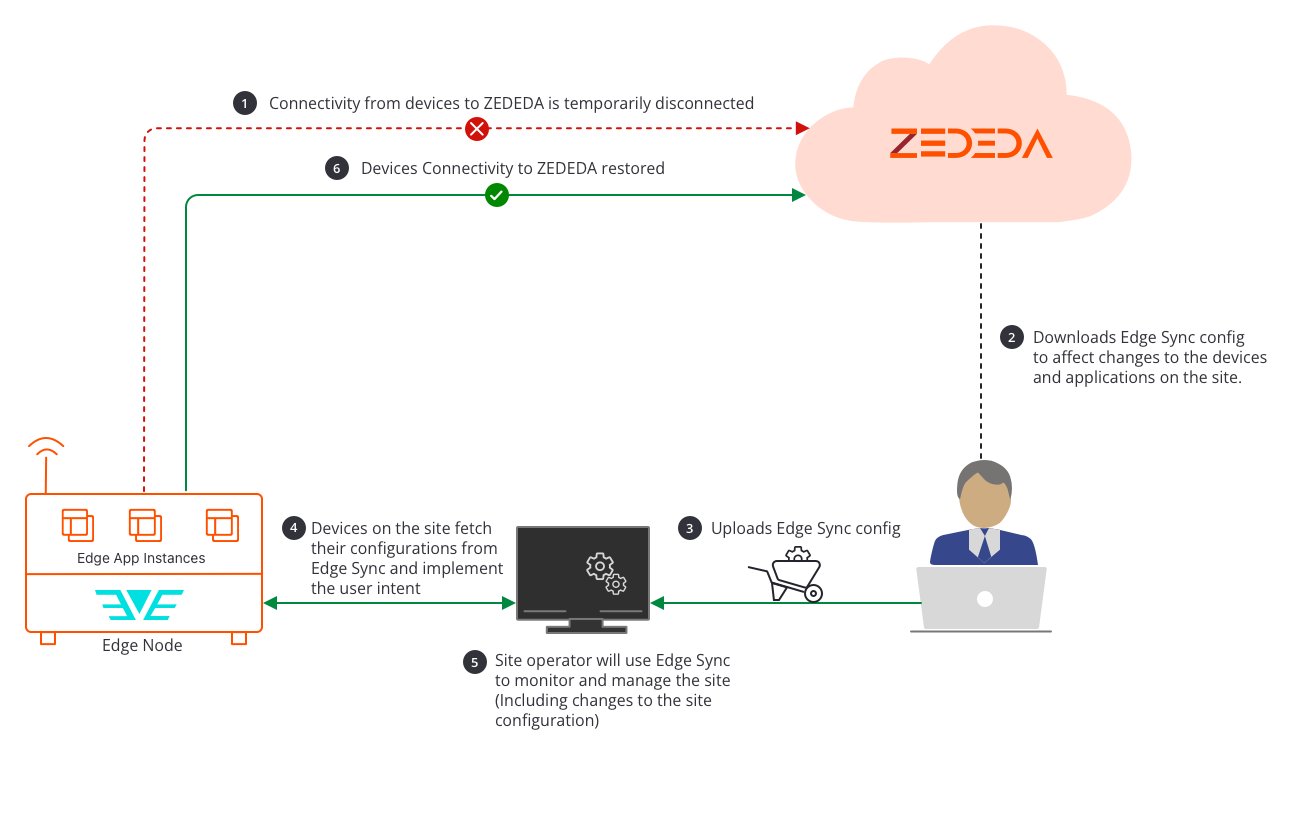
1180 for the API and GUI, and 8100 for the local datastore.
Prerequisites
- Nodes must be running EVE-OS (Edge Virtualization Engine) 9.7 or greater.
- Nodes must already be onboarded to Edge Infrastructure Services before using Edge Sync. Edge Sync does not support onboarding.
- Docker must be installed on the machine that will run the Edge Sync server.
- Edge Sync cannot manage a node that it runs on. Run it on a separate machine.
- You have the SysManager or SysAdmin role in your enterprise. See Manage Roles.
- To use the
collect-info.shdiagnostic feature with Edge Sync (requires EVE-OS 14.5.2-LTS or greater): a local HTTP datastore configured within the airgapped environment.
Set Up the Edge Sync Server
Download Edge Sync
The Edge Sync Docker image is hosted on Docker Hub.- Open a terminal on the machine that will run Edge Sync.
- Pull the Edge Sync image:
- Verify the image downloaded successfully:
zededa/edge-sync.
Start Edge Sync
Run the Edge Sync container. This command opens port1180 for the API and GUI, and port 8100 for the local datastore:
http://<YOUR_EDGE_SYNC_IP_ADDRESS>:1180.
Enable Edge Sync on Nodes
Nodes will only fall back to Edge Sync if you enable the feature for each node. You can enable it per-node or across all nodes in a project.On an individual node
- Open Infrastructure > Fleet > Nodes.
- Click the name of the node you want to configure.
- Click the Configure (⚙) button in the top-right corner of the node detail page.
- In the Configure overlay, select General Settings > Administration.
- Enable the Edge Sync toggle.
- In the Edge Sync URL field, enter the URL of your Edge Sync server in the format
http://<YOUR_EDGE_SYNC_IP_ADDRESS>:1180. - Optionally, in the Data Store selector, select a local HTTP or HTTPS datastore. This is required if you intend to use the
collect-info.shdiagnostic feature. - Click Save.
In a project policy (new project)
- Open Infrastructure > Fleet > Projects.
- Click the Add button (floating button in the lower right of the page).
- Select Standard or Deployment as the project type.
- Complete the Identity step and click Next.
- On the Policies step, locate the Edge Sync Policy card and enable its toggle.
- Click Configure on the Edge Sync Policy card to open the configuration dialog.
- In the Edge Sync URL field, enter your Edge Sync server URL.
- Optionally, select the local datastore in the Data Store field.
- Click Save, then proceed to the Review step and click Create Project.
In a project policy (existing project)
- Open Infrastructure > Fleet > Projects.
- Click the name of the project.
- Click the Configure (gear) button in the upper right.
- Click the Policies tab.
- Enable the Edge Sync Policy toggle and enter the Edge Sync URL.
- Click Save Changes.
Download Node Configurations from Edge Infrastructure Services
Before your Edge Sync server can serve configurations to nodes, you must download the configuration from Edge Infrastructure Services and import it into Edge Sync. Download one node at a time.- Open Infrastructure > Fleet > Nodes.
- Click the name of the node.
- In the node detail page header, click the … (More actions) button and select Download Edge Sync Config.
- Locate the downloaded configuration file. The file is named
edge_sync_config_{timestamp}.json.
Import and Apply Configurations in Edge Sync
After downloading configurations from Edge Infrastructure Services, import them into your Edge Sync server.Import configurations
- In your browser, navigate to
http://<YOUR_EDGE_SYNC_IP_ADDRESS>:1180. - Click the Nodes tab.
- Click the Import Configuration menu.
- Drag and drop or select the downloaded configuration file.
- Click Import Configuration.
Apply configurations
After importing, apply configurations to nodes that have updates available.- In the Edge Sync GUI, click the Nodes tab.
- Select the checkboxes for the nodes you want to update.
- Click the Apply Configuration menu.
- Click Apply Configuration.
Manage Nodes and Applications from Edge Sync
Management actions in Edge Sync are only available for nodes that are not currently connected to Edge Infrastructure Services.Node actions
- In the Edge Sync GUI, click the Nodes tab.
- Select the checkboxes for the nodes you want to manage.
- Click the … icon and select an action:
- Confirm the action when prompted.
Application instance actions
- In the Edge Sync GUI, click the Edge Apps tab.
- Select the checkboxes for the app instances you want to manage.
- Click the … icon and select an action:
- Confirm the action when prompted.
Use the Edge Sync API
You can also manage nodes and applications programmatically using the Edge Sync REST API. Set the base URL:/api/v1/user:
Next Steps
Node Details
Monitor node health and run states.
Manage Datastores
Create a local HTTP datastore for use with Edge Sync.
Enable Offline Mode on a Node
Additional ZCLI-based configuration to keep nodes running without cloud connectivity.