 Inference
 Marketplace


Introduction
Favorites lets you pin sidebar navigation pages to a dedicated section at the top of the sidebar. Use it to keep your most-visited pages (such as Nodes, Applications, or a Marketplace section) one click away without scrolling the full navigation. You can favorite individual pages or entire sidebar sections at once. Your browser stores Favorites locally and does not sync them across browsers or devices.How It Works
Favorited pages appear in a Favorites section near the top of the sidebar. The section is collapsible, and the console sorts items automatically in the order they appear in the main sidebar, regardless of the order in which you added them. Favoriting a page removes it from its original sidebar group. It appears only in the Favorites section, so there is no duplication. When the sidebar is collapsed, the Favorites section becomes a single star icon. Hover over it to open a flyout showing your favorited pages.Add to Favorites
Using the right-click menu
Right-click any navigation link in the sidebar and select Add to Favorites.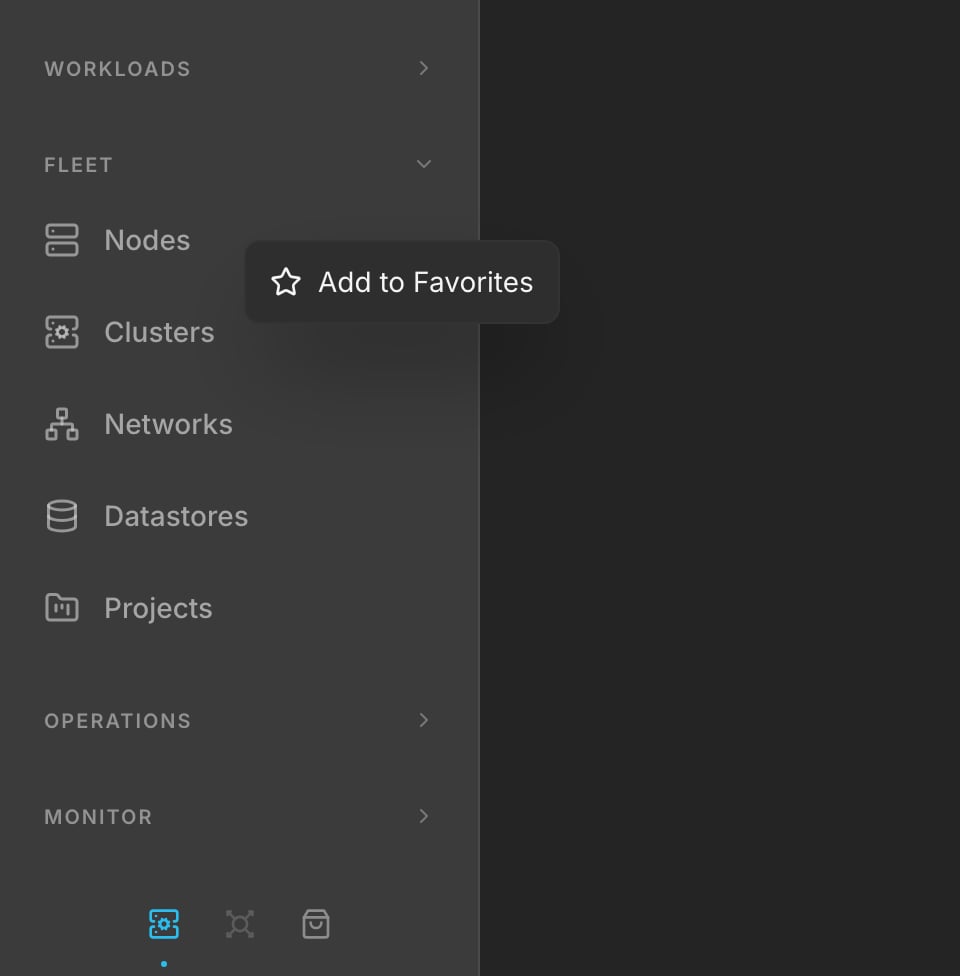
Right-click Nodes, then choose Add to Favorites.
Using drag and drop
Drag any navigation link and drop it onto the Favorites section in the sidebar. If Favorites is empty, a drop zone labeled “Drop to add favorite” appears at the top of the sidebar when you start dragging.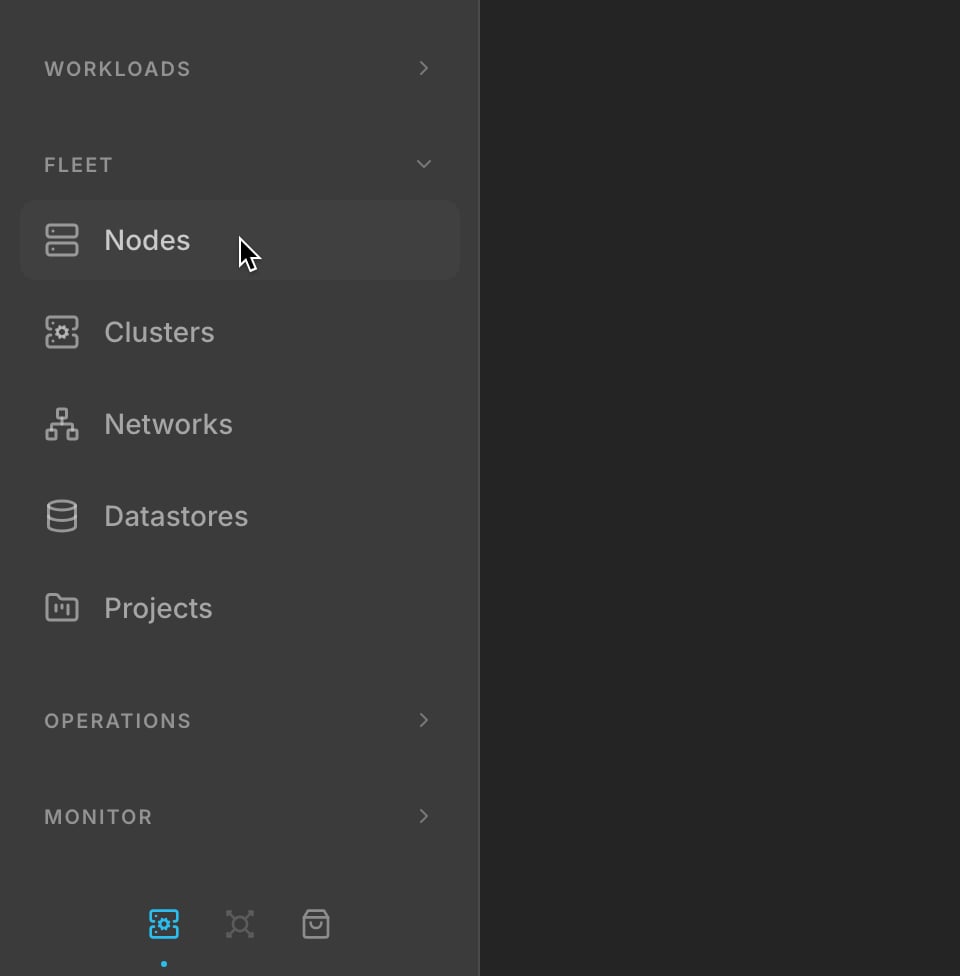
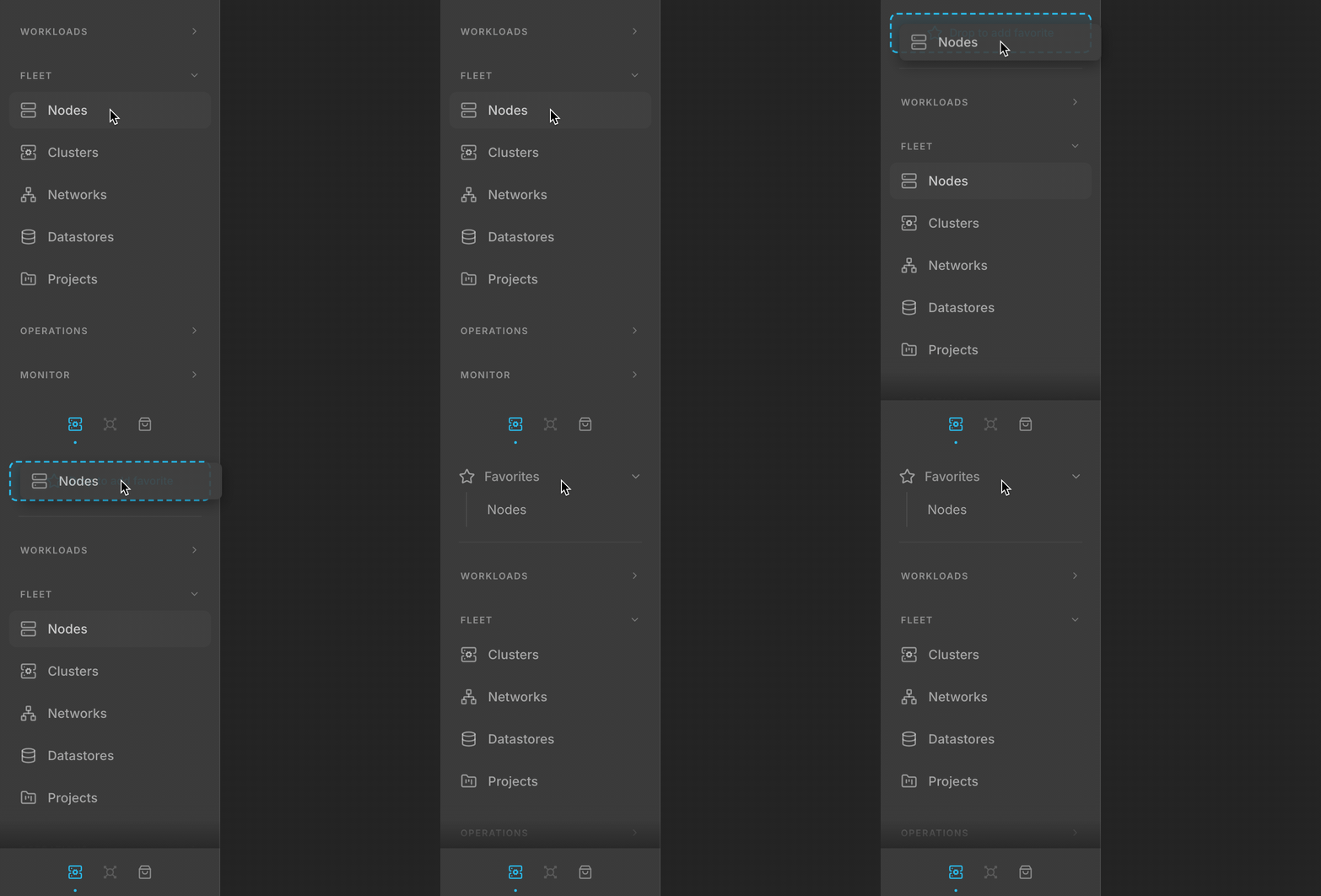
Drag Nodes onto the drop zone, then release. Nodes appears under Favorites.
Add an entire section at once
Drag a sidebar section header — for example, the Build or Fleet label — and drop it onto the Favorites section. All pages in that section are added to Favorites at once.Remove from Favorites
Using the right-click menu
Right-click any link in the Favorites section and select Remove from Favorites.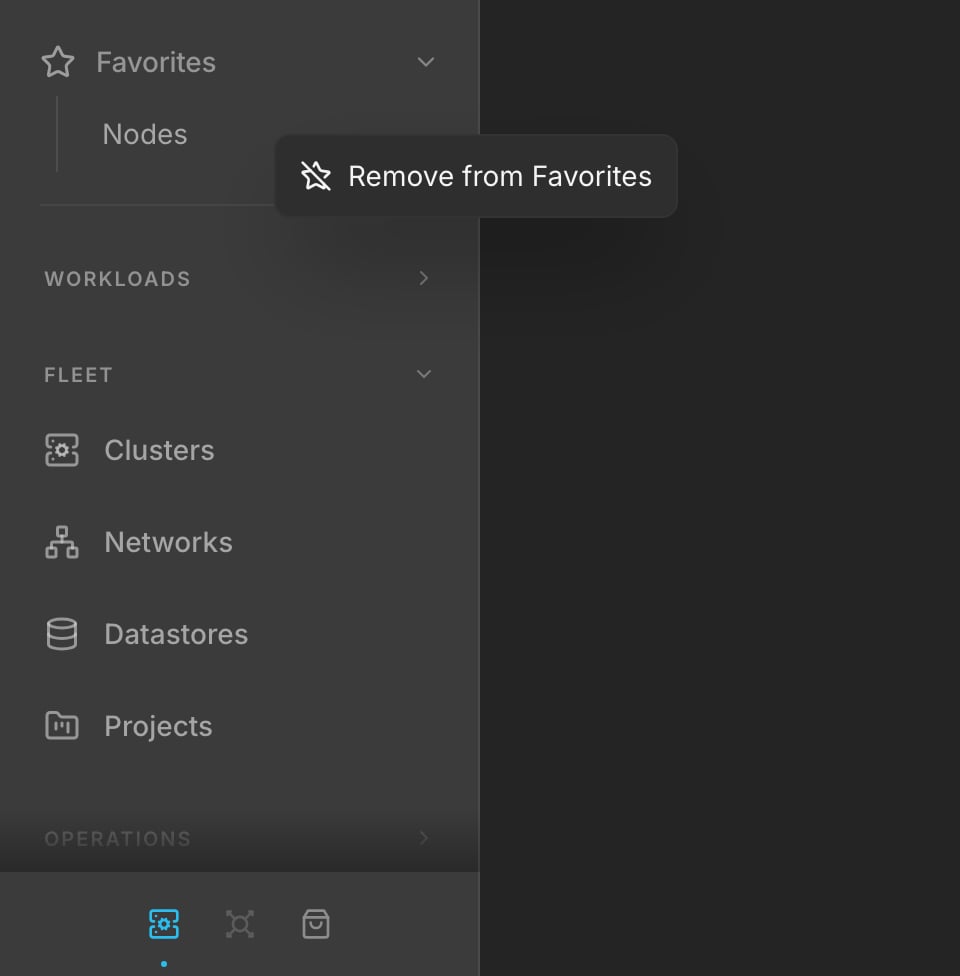
Right-click a favorite to move it back to its original group.
Remove all favorites
Right-click the Favorites section header and select Remove All Favorites.Using drag and drop
Drag a link out of the Favorites section and release it anywhere outside the section. A red dashed border and the label “Let go to remove” appear while dragging. Releasing the link removes it from Favorites.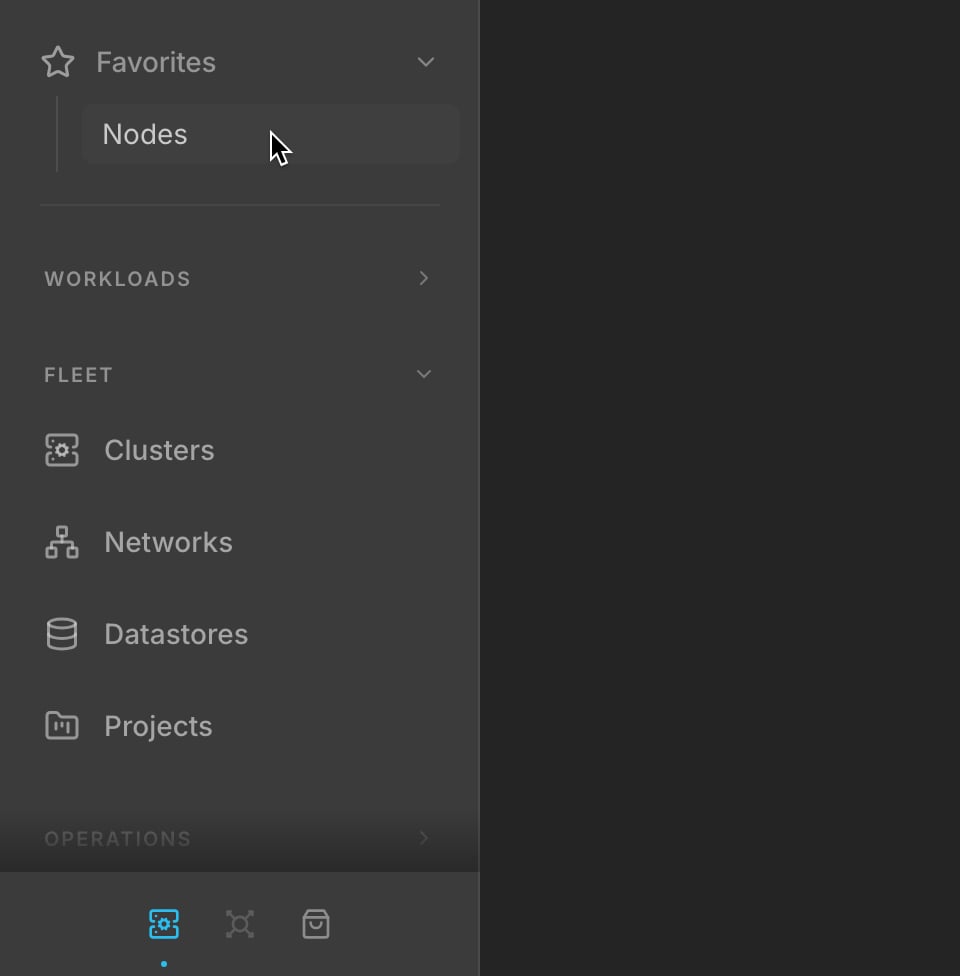
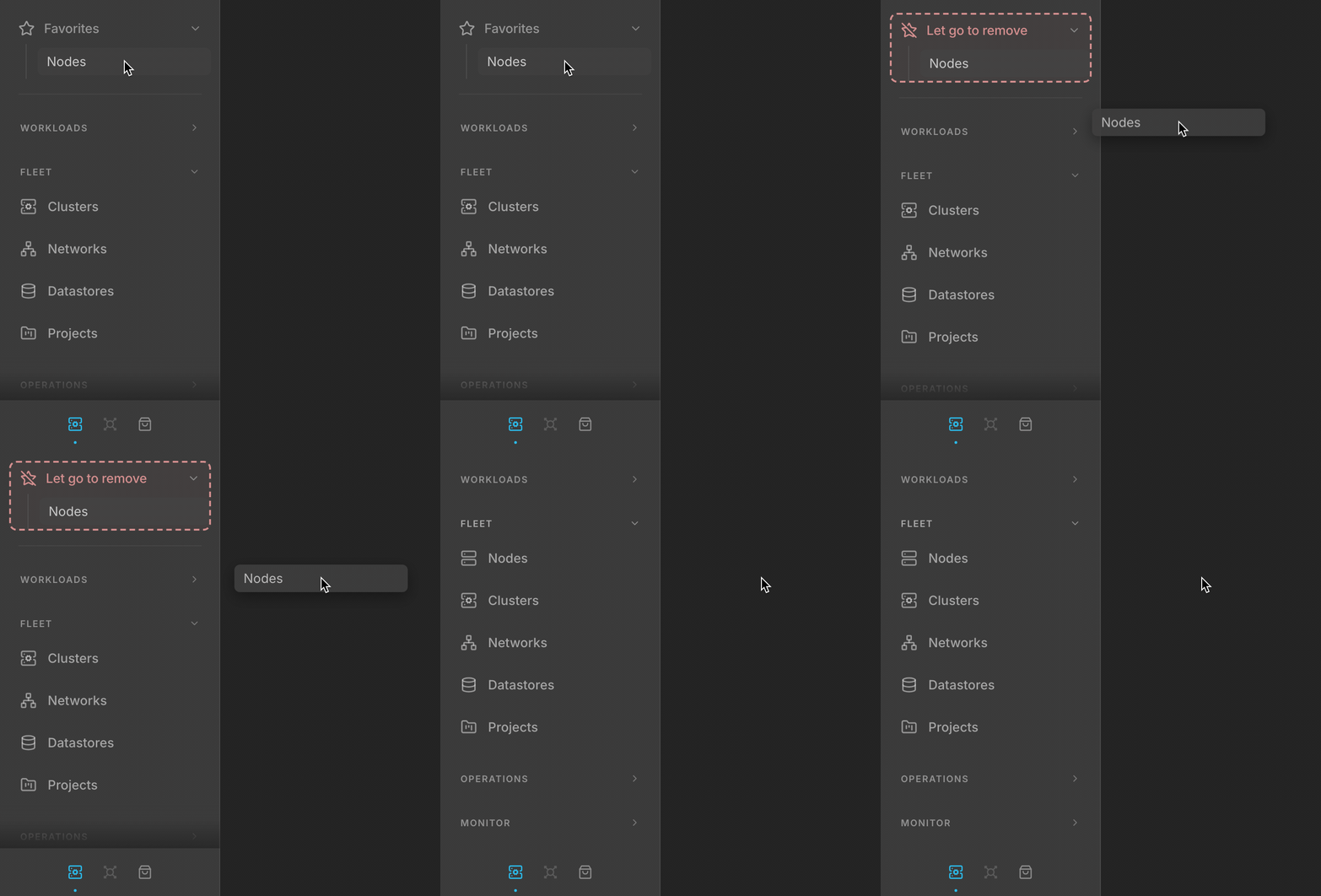
Drag Nodes outside Favorites, then release. Nodes returns to Fleet.
Next Steps
Navigate the ZEDEDA Console
Orient yourself in the sidebar, service areas, and key navigation patterns.
Search, Tables, Filters, and Actions
Use search, filters, and bulk actions across console list views.