 Inference
 Marketplace


Introduction
Use Export to download data from console lists for reporting, analysis, or sharing. Choose a file format and the columns you need. On tables that support row selection, you can also export a selection of objects. This article uses the Nodes list as an example. The available columns depend on the list you are exporting.Prerequisites
- A ZEDEDA account with access to the objects you want to export.
- A list page with an Export control. For the example below, open Infrastructure > Fleet > Nodes in list view.
Export a Table
- Go to Infrastructure > Fleet > Nodes and switch to list view. This example exports the rows in the Nodes table.
- Use the list’s search and filters to narrow the objects, if needed. To export specific objects, select their row checkboxes.
- Above the table on the right, click Export, the document-and-arrow icon beside the grid/list view buttons. Hover over it to see the Export tooltip.
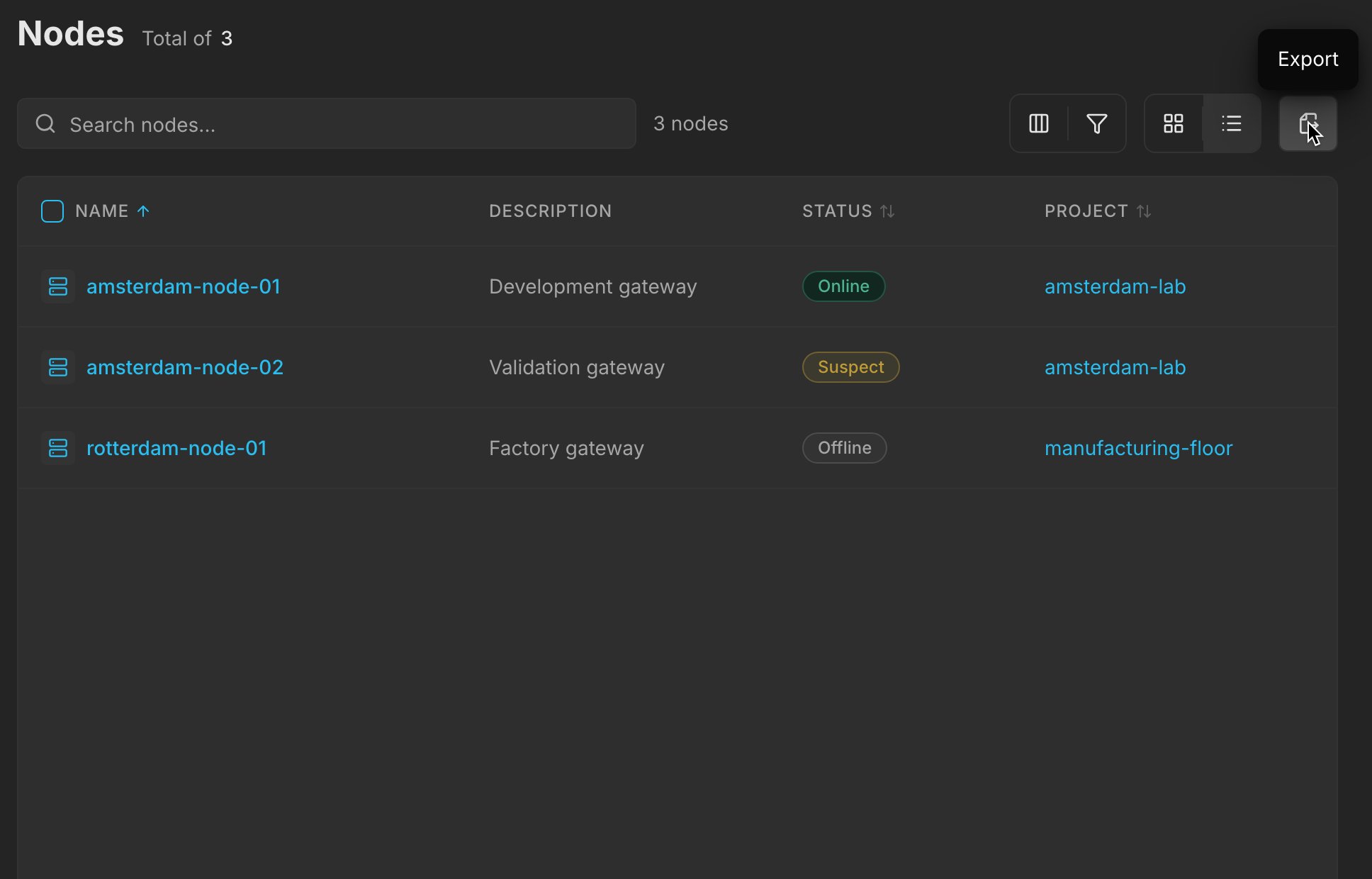
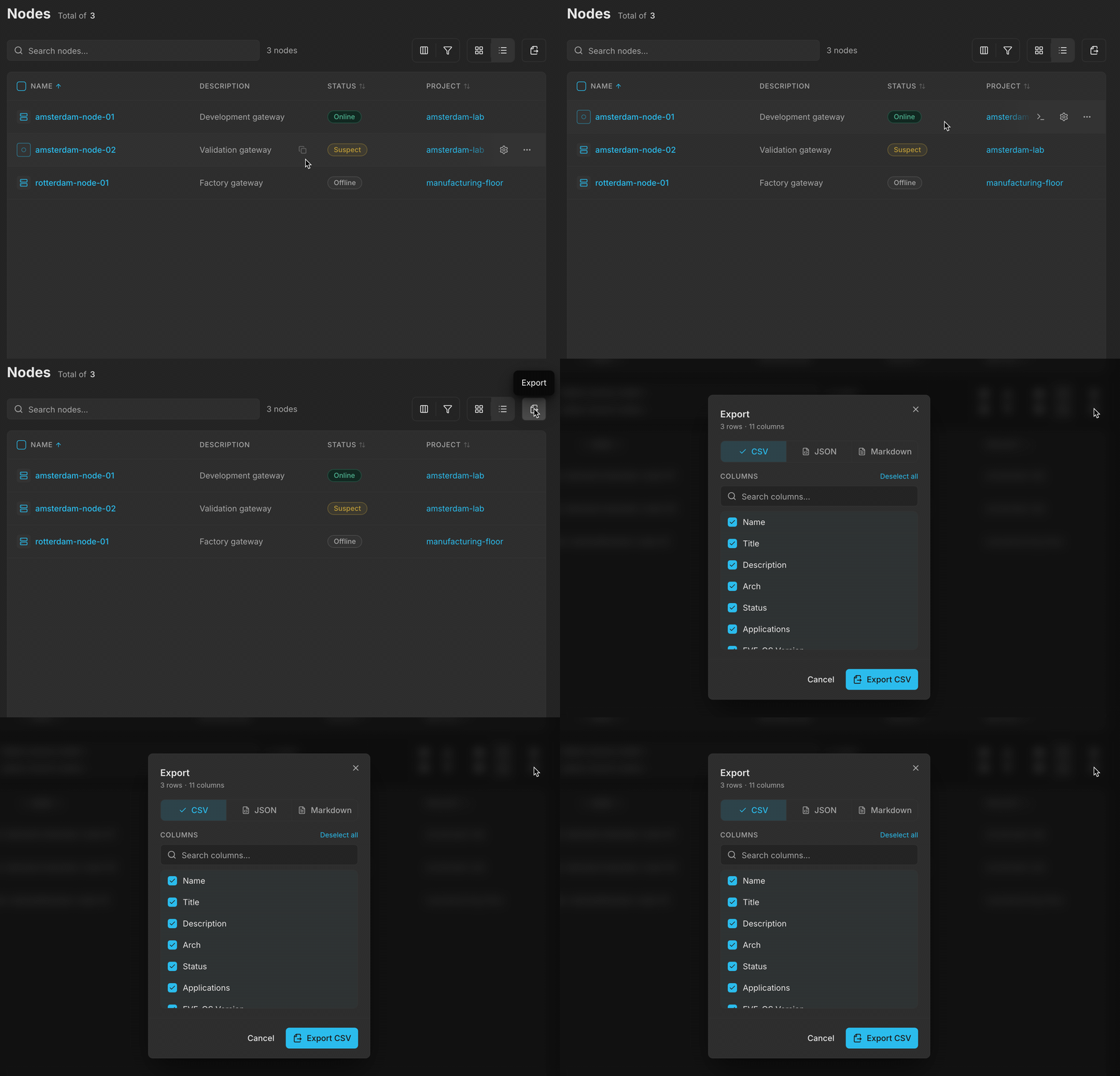
Move to the Export icon at the upper right of the table and click it to choose the file format and columns.
- If you selected rows, review the scope: export the selected rows or switch to the total option.
- Choose CSV, JSON, or Markdown.
- Under Columns, select the fields to include. You must select at least one column.
- Click Export CSV, Export JSON, or Export Markdown. The console prepares the file and starts a browser download. An Export complete notification confirms the result.
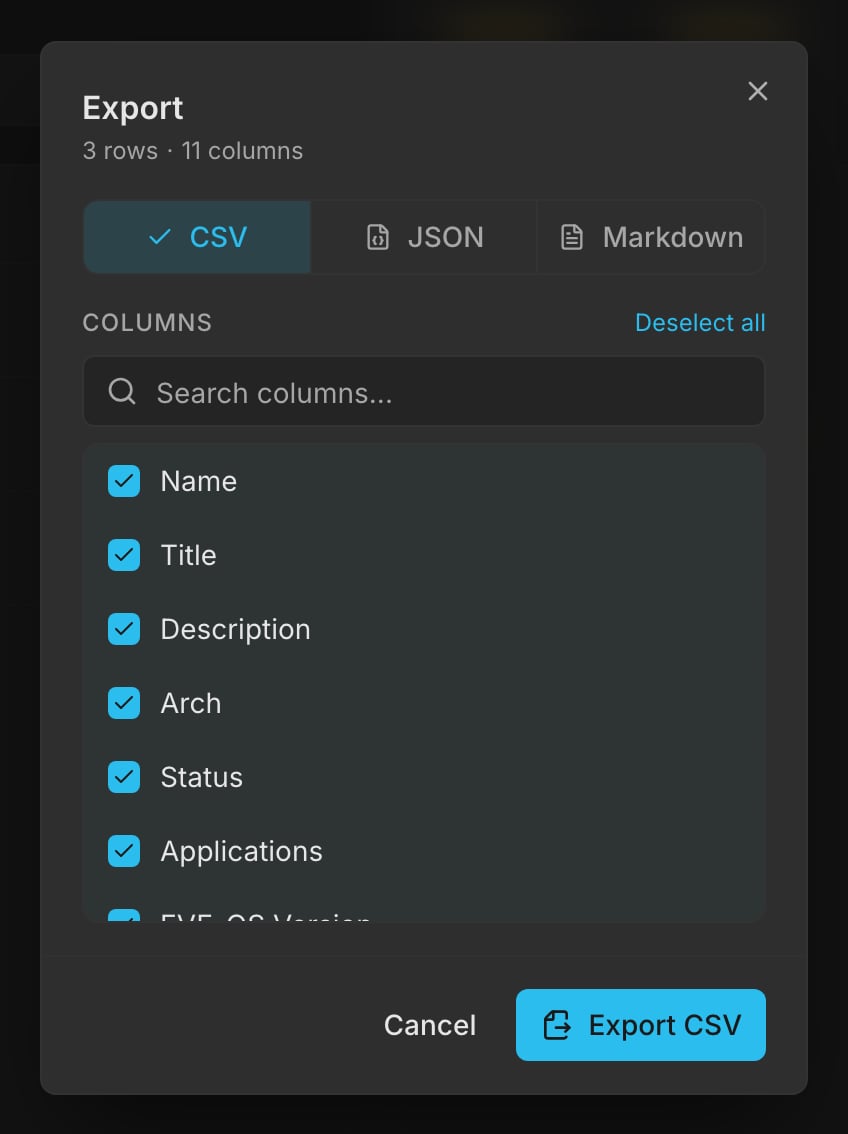
The Export dialog shows the row and selected-column counts, file formats, and column choices.
Choose a File Format
Each format includes the rows and columns chosen in the dialog.
Choose Rows
When rows are selected in the table, the Export dialog defaults to that selection. The scope controls show the number of selected rows and the total count. Choose the total option to export beyond your selection. On the Nodes list, exporting the full list includes nodes matching the current search and filters, across all result pages. You do not need to increase the table’s page size to include them. If you have not selected any rows, the dialog opens for the full list without showing the scope controls.Choose Columns
The Columns list controls which fields appear in the downloaded file. It is independent of the columns currently visible in the table, so you can include a field without changing your table layout.- Check or uncheck a column to include or exclude it.
- Use Search columns… to find a field by name. This filters the column choices; it does not search the table’s rows or clear other selected columns.
- Use Deselect all to start with an empty selection, or Select all to include every available column, including columns outside the current column search.
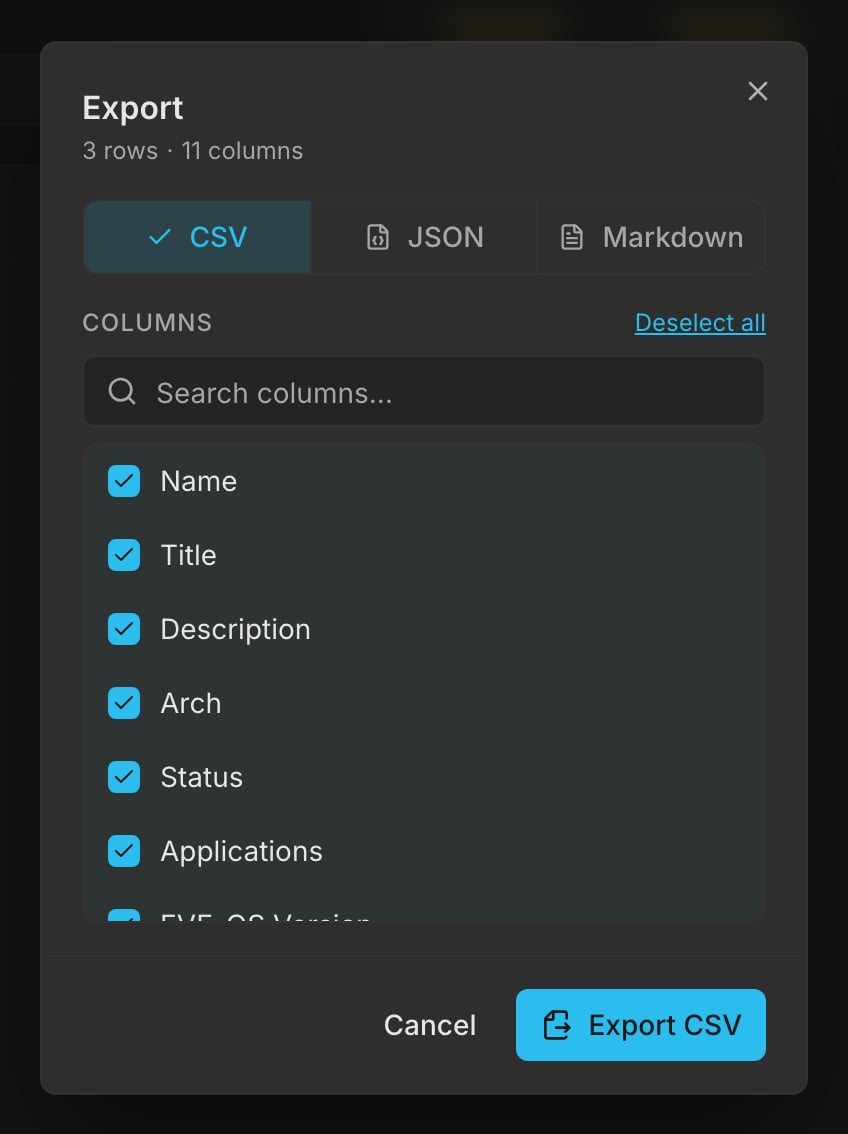
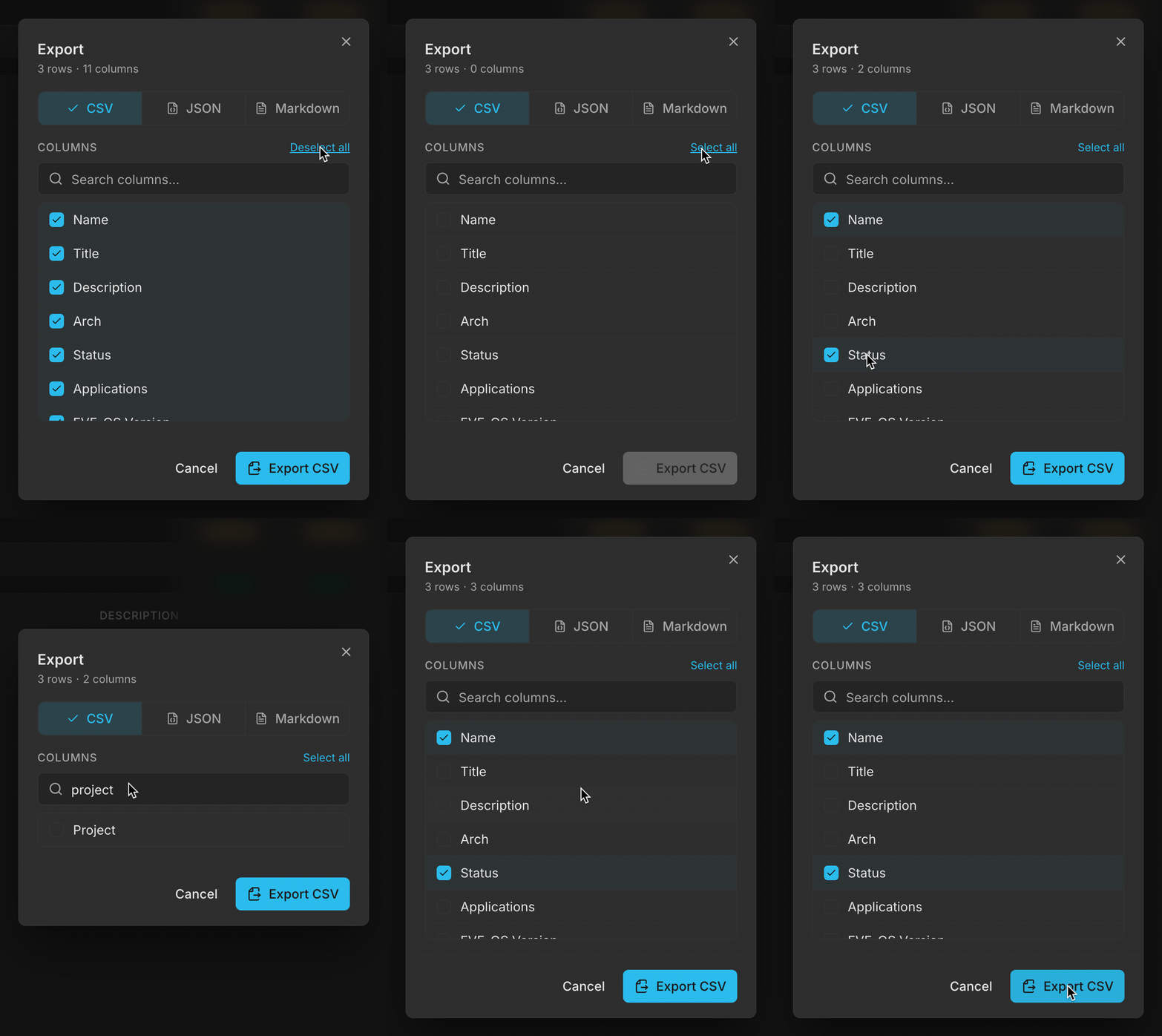
Choose only the fields you need. Searching for Project keeps Name and Status selected.
Export Progress
Small exports usually download immediately. If preparation takes longer, a progress dialog appears. Closing that progress dialog cancels the export. Large exports can run in Background Tasks. Minimize the export to continue working in the console while the file is prepared. Keep the browser tab open until the download completes. If an Export failed notification appears, try the export again. If the Export button is disabled in the configuration dialog, check that at least one column is selected.Next Steps
Search, Tables, Filters, and Actions
Narrow a list and customize your table before exporting.
Permissions and Visibility
Understand which objects and service areas your role can access.