 Inference
 Marketplace


Introduction
Network Time Protocol (NTP) is used to synchronize the clocks of devices distributed across a network. For ZEDEDA deployments, accurate timekeeping is critical: node certificates require valid timestamps at first boot, EVE-OS logs depend on synchronized time, and edge container workloads often require an accurate clock for certificate validation, scheduling, and data processing. This article explains how EVE-OS manages clock synchronization and how to monitor NTP server status on a node.How It Works
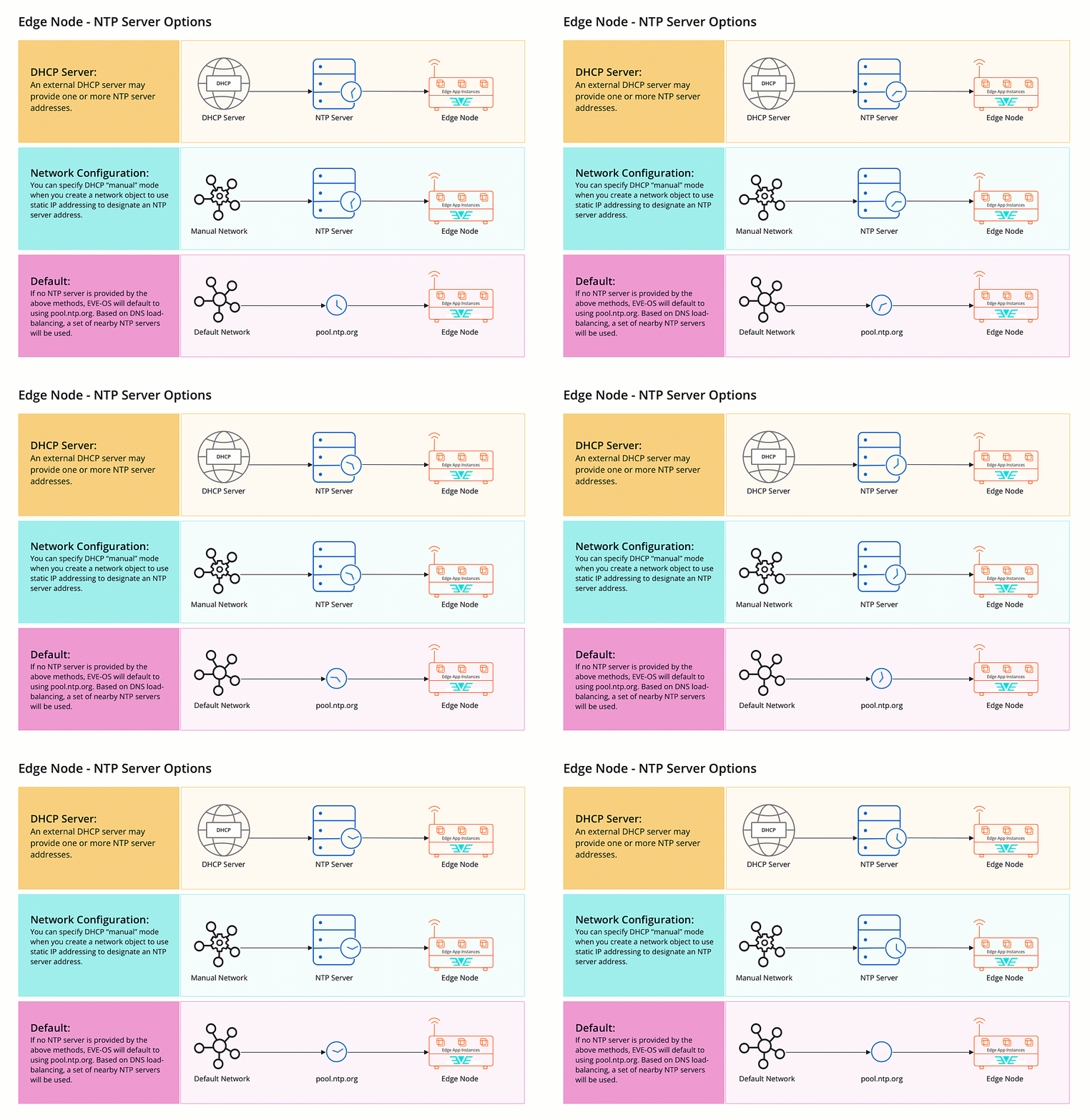
EVE-OS runs an embedded NTP client that begins synchronizing the system clock from boot time. The NTP client uses one or more NTP server addresses obtained through the following methods:- DHCP Server: An external DHCP server may provide one or more NTP server addresses as part of the DHCP process.
- Network configuration: When using static IP addressing, an NTP server address can be configured directly on the Network object assigned to the node’s management port.
- Default: If no NTP server is provided by either of the methods above, EVE-OS defaults to
pool.ntp.org. Based on DNS load-balancing, a set of geographically nearby NTP servers is used.
Providing Clock Synchronization to Edge Containers
Edge containers (VMs and application containers) often need accurate time for logging, certificate validation, and application workloads. EVE-OS supports several methods for supplying time to edge containers: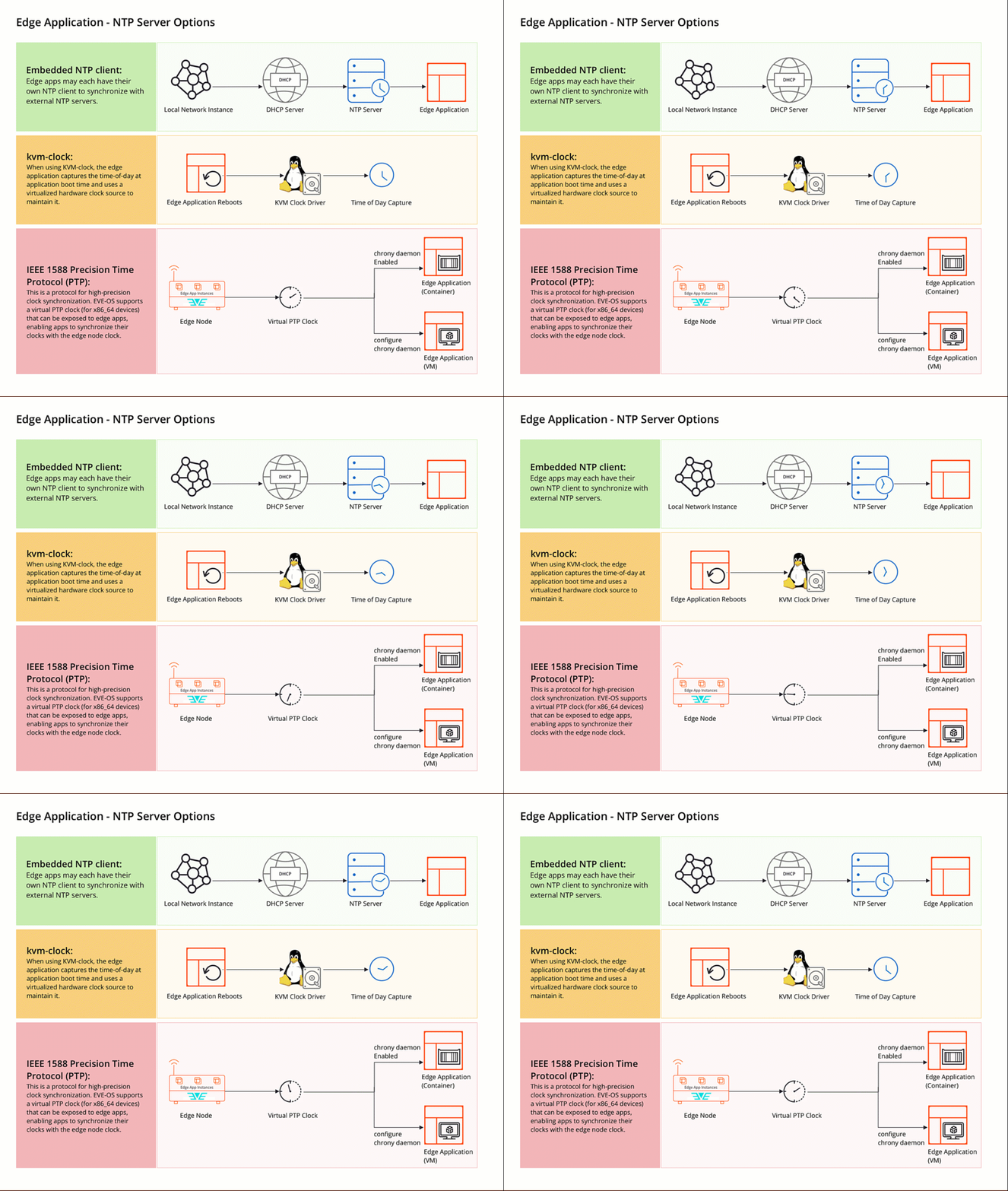
/dev/ptp0 or /dev/ptp_kvm. EVE-OS automatically enables the chrony daemon for containers when the EVE_ENABLE_CHRONY=1 environment variable is defined.
Clock Accuracy When Offline
When a node loses network connectivity, it can no longer synchronize with NTP servers. EVE-OS maintains time using the hardware clock source, which may drift without NTP corrections. Common hardware time sources include TSC (Time Stamp Counter), HPET (High Precision Event Timer), and ACPI_PM. The accuracy during offline periods depends on the hardware platform and its power management configuration.Monitor NTP Server Status
After you configure NTP for a node, you can monitor the status and performance of each NTP server directly in Edge Infrastructure Services. Nodes report NTP status and performance metrics to Edge Infrastructure Services every 10 minutes by default, or immediately when the mode, state, or reachability of a server changes.Software requirements
To support NTP status reporting, the node must run EVE-OS version 12.6.0 or later.View NTP server status
- In the sidebar, select Infrastructure > Fleet > Nodes.
- Select the name of the node you want to inspect.
- On the Overview tab, locate the Live status panel.
- Select the NTP info sub-tab. The NTP peers table appears. If the node has not yet reported its peer list, the panel displays: “No NTP peers reported. Time-sync status will appear once the device reports its peer list.”
NTP status values
The NTP servers table shows the following fields for each NTP server:Next Steps
Create a Network
Configure NTP server addresses in a network object assigned to a node port.
Networks Overview
An overview of node connectivity.